VS Code Integration
It is recommended to install the
Python extension before
editing your game in VS Code. Once it is installed, ensure that the Python interpreter is set to the
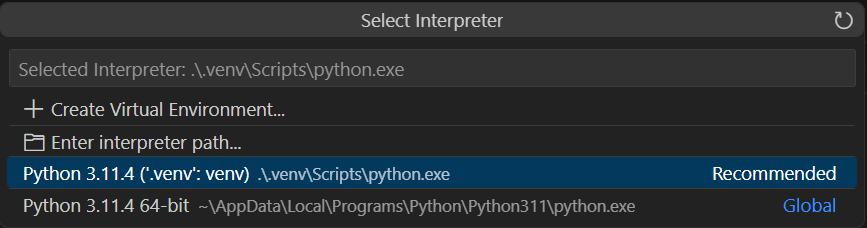
one in the virtual environment you created earlier. You can do this by opening the command palette
(Ctrl+Shift+P) and typing Python: Select Interpreter and choose ./.venv/bin/python or
./.venv/Scripts/python.exe on Windows.
Debugging with F5
You can set up a launch task to debug your game with F5. Add an entry to the
.vscode/launch.json file's "configurations" array:
{
    "name": "<your project name>",
    "type": "debugpy",
    "request": "launch",
    "module": "<your.dot.separated.project.directory>.main"
}
For example, if your game script is at
my_stuff/games/ziltoid_the_destroyer/main.py, your launch.json should look like:
{
    "version": "0.2.0",
    "configurations": [
        {
            "name": "Ziltoid the Destroyer",
            "type": "debugpy",
            "request": "launch",
            "module": "my_stuff.games.ziltoid_the_destroyer.main"
        }
    ]
}
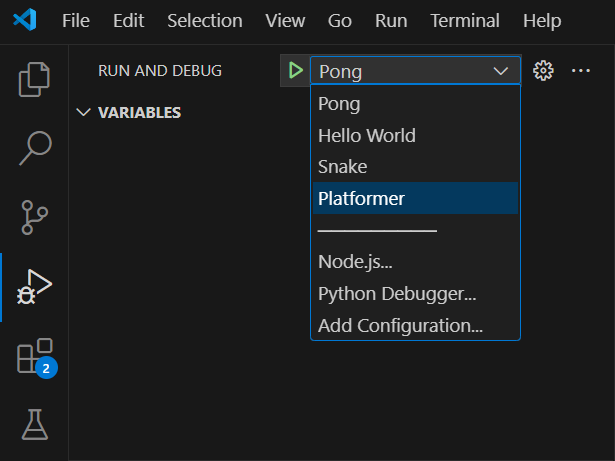
Go to the debug tab (Ctrl+Shift+D), select your project from the dropdown, and press F5.
Static Analysis
Ajishio is fully typed and works well with basedpyright and ruff. Install the corresponding VS Code extensions to get real-time type checking and linting.
Runtime globals and typing
All public API — functions, classes, constants, and live engine/view state — is available directly
on the ajishio package via a single import ajishio as aj. Callables, data classes, and
constants are module-level names resolved at import time. Live per-frame values such as
aj.room_width, aj.delta_time, aj.room_speed, aj.view_current, aj.window_width, and
aj.room_background_color are resolved dynamically via __getattr__ so they always reflect the
current engine state. View port dictionaries (aj.view_xport, aj.view_yport, aj.view_wport,
aj.view_hport) are exported as direct references to the live mutable dicts on the View
singleton, so reads and writes to them are always live.